My Account

My Account

You can always access your account information by clicking the profile link on the top right side of the screen. To change your account information, simply type the new information in the fields, then click Update Account. An anonymous user viewing their account information will only see that they are logged on as "anonymous".
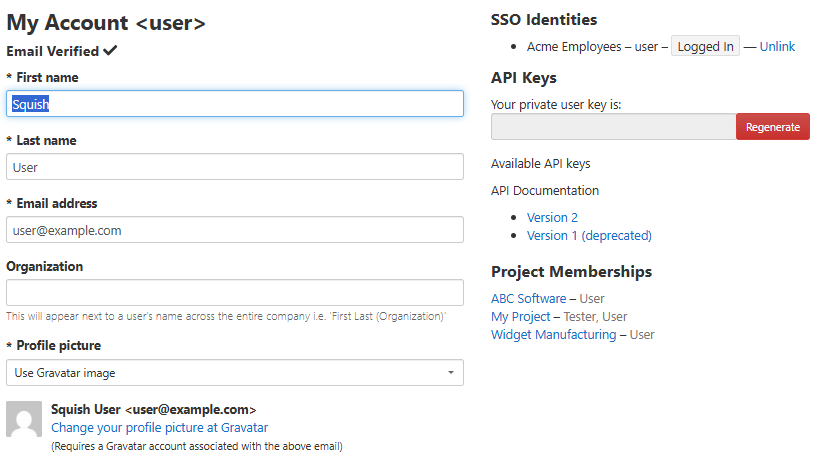
User Account Settings

  • Verify My Email – This link appears if your email address has not yet been verified by Squish. Clicking it will send an email to you with a link to verify your account.
  • First Name and Last Name - Your full name appears in many user lists. Therefore, you should enter the name by which most people know you. You may change these names at any time as needed. Each name can be up to 100 characters in length.
  • E-mail Address - You must supply Squish with a valid e-mail address. Depending on project and personal settings, Squish may automatically send users a number of e-mail messages, so it is important that this address be one which you check on a regular basis.
  • Organization – This field is optional. If a value is entered, that value will appear in parenthesis after the user’s name anywhere in Squish that their name is found. On pages where hovering over a user’s name opens a popup dialog, the Organization value will be displayed in the pop up instead.
  • Profile Picture - To enter or change a profile picture, you have several options:
    • Custom image (upload below) - An image can be uploaded directly to Squish.
    • Use Gravatar image - To select this option, you must have an account at gravatar.com. When you are setting up your account, you must use the email address that is used for your Squish account to have the profile picture appear in your account.
    • None (use the default image) - This option uses a blank default image for your profile.
  • Reset My Password – This button allows you to change your own password. You must enter your current password, as well as the new password and a verification of the new password.

On the right side of the screen, your private user key is available, as well as a link to regenerate it. Another link leads to documentation regarding available API methods. Any API keys associated with your account will be displayed here also. Under Project Memberships is a list of every project which your account has access to, including links to each project's home page.

From the My Account screen you can also:

  • Edit your Display Preferences
  • Edit your Date/Time Preferences
  • Edit your Issue Preferences
  • Edit your Notification Preferences

Once you have an account, follow the directions on the web site to select the image file you want to use on your profile.  This can be an image from the web or one you have stored on your computer. You can browse to select the image. The image may take several minutes to appear in Squish.

You can also deactivate your account via the Deactivate My Account button at the bottom of the page. Once inactive, only an administrator can reactivate your account.

Display Preferences

To change your Display Preferences, enter your account by clicking on your username on the menu bar. In the Display Preferences section, use the dropdown menus to change the number of results you want displayed for searches on the project Home page, search pages and recent projects in the Home dropdown using the Display Preferences portion of your account screen.  You can also change the text size in your issues tables making the issues text larger or smaller.  When you finish making your selections, click on the Update Account button.  You will get a success message.

display_preferences.png

  • Display __ results by default for searches on the project home page - The number of issues listed under Issues Assigned to Me and My Watch List on the Home page will not be more than the number of issues specified. The default value is 15.
  • Display __ results on the search pages by default - When you conduct a search, the number of issues displayed on each page will be no greater than the number of results specified. The default value is 25.
  • Display __ recent projects in the project dropdown - The Project dropdown lists the Squish projects that you can access that have recent activity, up to the number of projects specified. The project you are currently viewing is not included in the list. If you are not viewing the All Projects screen, All Projects is included in the list, but does not count towards the total number of projects listed. The default value is 10.
  • Text size - The relative size of the text for the issues in the issues tables.
  • Avoid wrapping text in issue tables - When viewing a table, text that would be truncated due to space constraints is wrapped instead when this box is checked.
  • Show search criteria when opening searches – If checked, the search criteria panel will be displayed automatically when opening a saved search. If unchecked, then the criteria will be hidden by default.

Date/Time Preferences

To change your Date/Time Preferences, enter your account by clicking on your username on the menu bar. Using the dropdown menus, you can select the timezone and change the format of dates and times.  When you finish making your selections, click on the Update Account button.  You will get a success message.

date_and_time_preferences.png

  • Timezone - Providing Squish with the correct time zone allows the system to alter the timestamps on comments or other activities to match your time zone.
  • When entering dates, format them as - The format to use when typing dates into fields.
  • When displaying dates, format them as - The format dates will appear in when displayed.
  • When displaying times, format them as - The format that time stamps will appear in when displayed.

Issue Preferences

To change your Issue Preferences, enter your account by clicking on your username on the menu bar. Using the checkboxes, you can toggle them on and off to make your selections of how you want your issues handled. When you finish making your selections, click on the Update Account button. You will get a success message.Issues preferences

  • Comment Format - This sets the default markup language for editing new and existing comments.
  • Paste Format - Some applications, such as Microsoft Excel, will copy both text and an image to the clipboard at the same time. This option allows you to pick which option should be pasted. By default, the value for this preference is Text. (Since QuickEdit does not allow the pasting of images, this preference does not apply to QuickEdit pasting, which will always use text.)
  • Show Comments - This sets the number of comments to be displayed when viewing an issue: 2, 5, 10, or 15. You may also select to show all comments. 
  • Add submitted issues to my watch list by default - If checked, when you submit an issue, it will automatically be added to your Watchlist.
  • Keep my comments as confidential by default - If checked, when you submit an issue the Confidential drop-down will be set to Yes by default and when you add a comment to an issue the "Keep this comment confidential" box will be checked by default.
  • Show field history in the issue timeline by default - This controls whether or not the history of changes to an issue is displayed by default. You can also choose whether or not to display the history from within the issue itself.
  • Show git commits in the issue timeline - If your Squish project is configured to integrate with Git, this preference controls whether or not commits in Git are displayed alongside issue comments or not.
  • Attempt to display attachments in my browser - If unchecked, this option will cause all attachments to be downloaded.
  • Show user picture - If checked, this option will display user pictures next to their comments and other updates in issues. If unchecked, the user's name will still be displayed, but the image will be hidden.
  • Use a monospaced font for the comment and wiki editor - If checked, a monospace font is used when editing comments and wikis. Monospace font is especially helpful when typing code blocks.

Notification Preferences

To change your Notification Preferences, enter your account by clicking on your username on the menu bar. Use the checkboxes to specify how you want notifications handled. When you finish making your selections, click on the Update Account button. You will get a success message. notification preferences

  • Send me announcements and news concerning Squishlist - Occasionally IMS will send out important emails regarding Squish.
  • Email me when issues I submitted are updated - You will receive an email if someone makes changes to an issue that you submitted.
  • Email me when issues I commented on are updated - You will receive an email if someone makes changes to an issue that you entered a comment on.
  • Email me when I submit or update issues - You will receive an email if you submit or update and issue. By default, this box is unchecked.
  • Email me when someone reacts to a comment – You will receive an email when someone reacts to a comment you created.
  • Send me notification email in HTML format - Emails sent from Squish will be formatted using HTML tags instead of just being in plain text. This allows hyperlinks to be clickable.
  • Bcc me by default on notification emails - When you send an email from Squish, you will automatically receive a copy of your email. This is useful for record keeping purposes.
  • Group all due date reminder emails into one digest email - This item allows you to get one email including all reminders for a given day rather than separate emails.
  • Remove resolved issues from your watch list after this many days of inactivity - You may enter a number of days after which issues which have not been updated will be removed from your watch list.